Claude


Connect Claude Code and Claude Desktop to DeployStack Satellite with a single URL and give your team instant access to managed MCP servers across terminal and desktop workflows. No local server processes, no API keys in configuration files, no credential sharing through insecure channels.
DeployStack's encrypted vault stores tokens centrally and injects them into MCP processes automatically, so developers use tools without ever seeing sensitive credentials. Role-based permissions control which team members access specific MCP servers, while audit logs track every tool interaction whether invoked from Claude Code in the terminal or Claude Desktop's interface.
The hierarchical router exposes just two meta-tools instead of hundreds, maximizing the context window for actual coding tasks instead of consuming it with tool definitions. Add the satellite URL to your Claude configuration once and both Claude Code and Claude Desktop inherit the full MCP toolset immediately.
Claude Code
Integrate Claude Code with DeployStack using one CLI command. Your terminal sessions gain immediate access to team MCP servers through centralized credential management and hierarchical routing. Work with authenticated tools without exposing sensitive credentials in your local environment.
claude mcp add --transport http deploystack https://satellite.deploystack.io/mcp
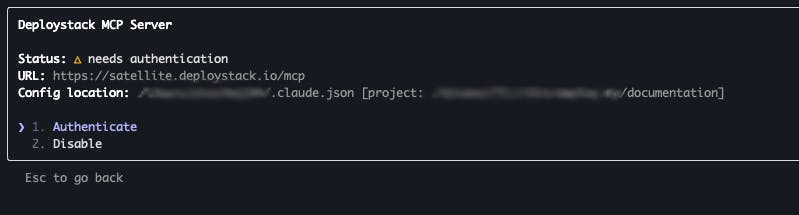
Select and Authenticate
Run `/mcp` in Claude Code to open the MCP server menu. Find "deploystack" in the list (showing "needs authentication" status), then select "Authenticate" to begin the OAuth sign-in process.
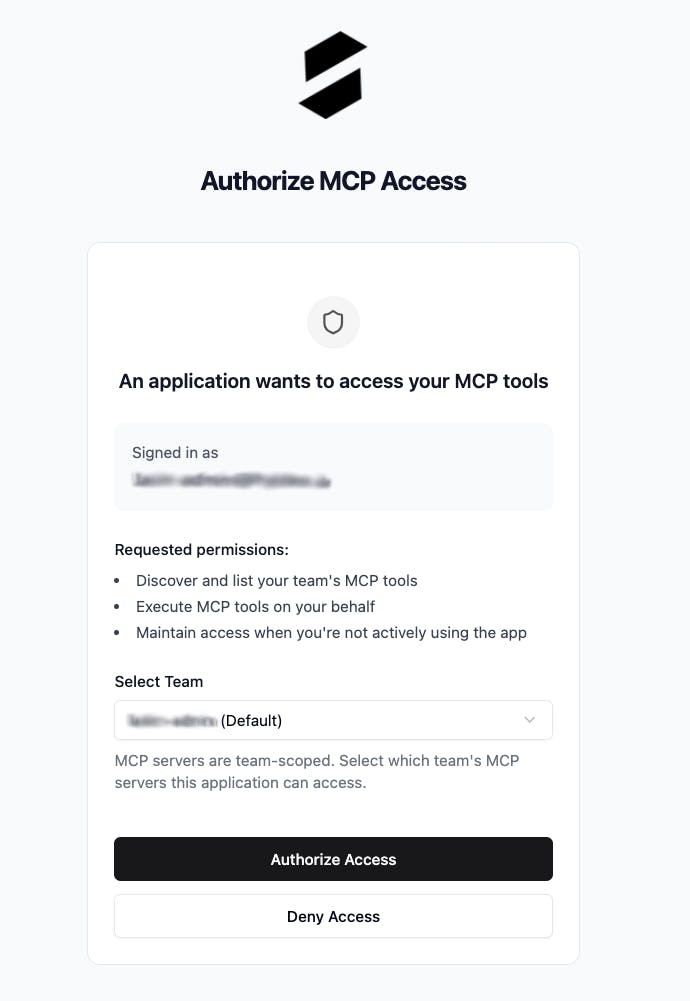
Select Team and Authorize
In the authorization window, select which team's MCP servers Claude Code can access. Review the requested permissions—tool discovery, execution, and offline access—then click "Authorize Access" to finalize the connection.
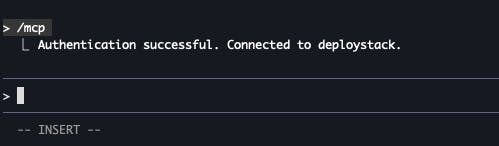
Ready to Use
Claude Code shows "Authentication successful. Connected to deploystack." Your terminal is now connected to your team's MCP tools with secure, centralized credential management handled automatically.
Claude Web Client
Integrate DeployStack with claude.ai for instant MCP access in your browser. Add the satellite URL once and every web conversation inherits your team's full toolset with centralized credential management and role-based permissions—no local configuration needed.
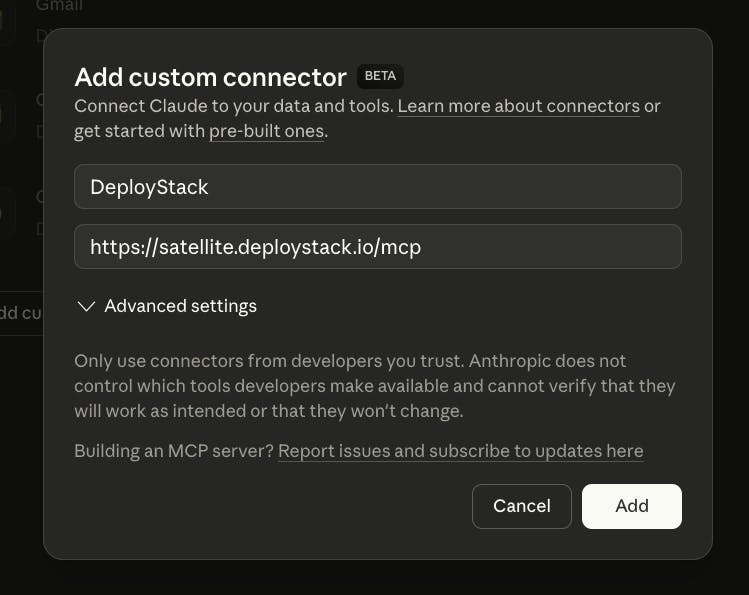
Configure Custom MCP Connector
In Claude's web interface, open the connectors menu and select "Add Custom connector." Fill in two fields: set the name to "DeployStack" and enter your team's satellite URL as the remote MCP server address to establish the connection.

Start Authentication
Find DeployStack in your connectors list and click "Connect" to begin OAuth authentication. This establishes a secure connection between Claude's web interface and your team's managed MCP tools.
Select Team and Authorize
In the authorization window, select which team's MCP servers Claude web can access. Review the requested permissions—tool discovery, execution, and offline access—then click "Authorize Access" to finalize the connection.
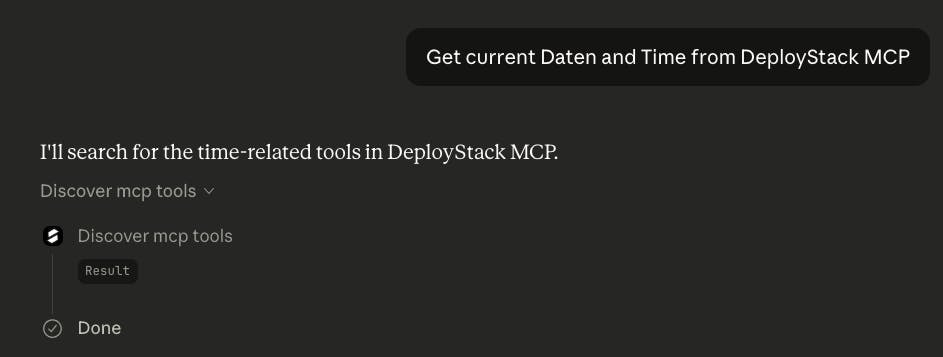
Start Using MCP Tools
Connection complete! Claude web now has access to your team's MCP servers. Ask Claude to perform tasks, and it automatically discovers and executes the right tools from DeployStack without manual intervention.
Your Claude environment is now connected to DeployStack. Whether you're working in Claude Code from the terminal, Claude Desktop, or the web interface, your team's MCP servers are ready to use. Start prompting and let Claude handle the rest.